
Central Register of Beneficial Owners (RCBE) in Cameroon: declaration guide
The Central Register of Beneficial Owners (RCBE) is a system set up in Cameroon by the tax administration to collect and store information on the beneficial owners of legal entities (companies, trusts, partnerships). The beneficial owner is the natural person who ultimately owns, controls or benefits from the assets or income of the entity. The register aims to increase transparency and to prevent money laundering, terrorist financing and other illicit activities.
This step-by-step guide walks you through declaring and then submitting your beneficial owner on the official platform of the Directorate General of Taxation (DGI).
1. Accessing the platform
You can reach the service in several ways:
- Directly at: bef.harmony2.cm ;
- From the official DGI website (www.impots.cm), by clicking the « Beneficial Owner » menu icon on the right.
The platform works on every device (PC, mobile, tablet) and in both official languages of Cameroon: French and English.
On the login page, enter:
- The username: your NIU (Unique Identification Number) ;
- The password: your Fiscalis password (e-filing platform) ;
- The code shown above the text field (anti-robot check).
Finally, click the orange ACCESS MY ACCOUNT button. Once logged in, you land on your dashboard, which summarises your assessments and payments made on the tax administration's platforms.

2. Filing a beneficial owner declaration
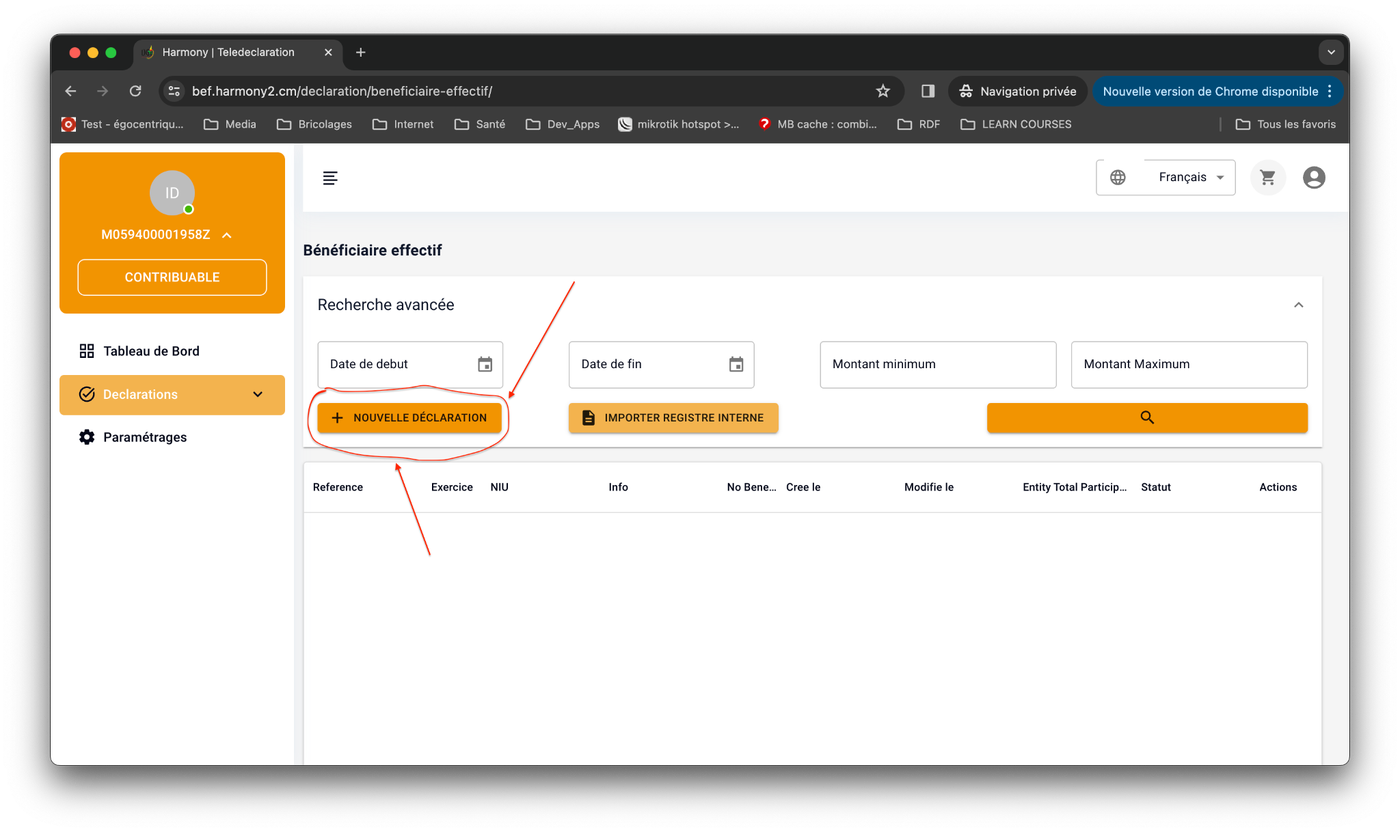
From the dashboard, in the left-hand side menu:
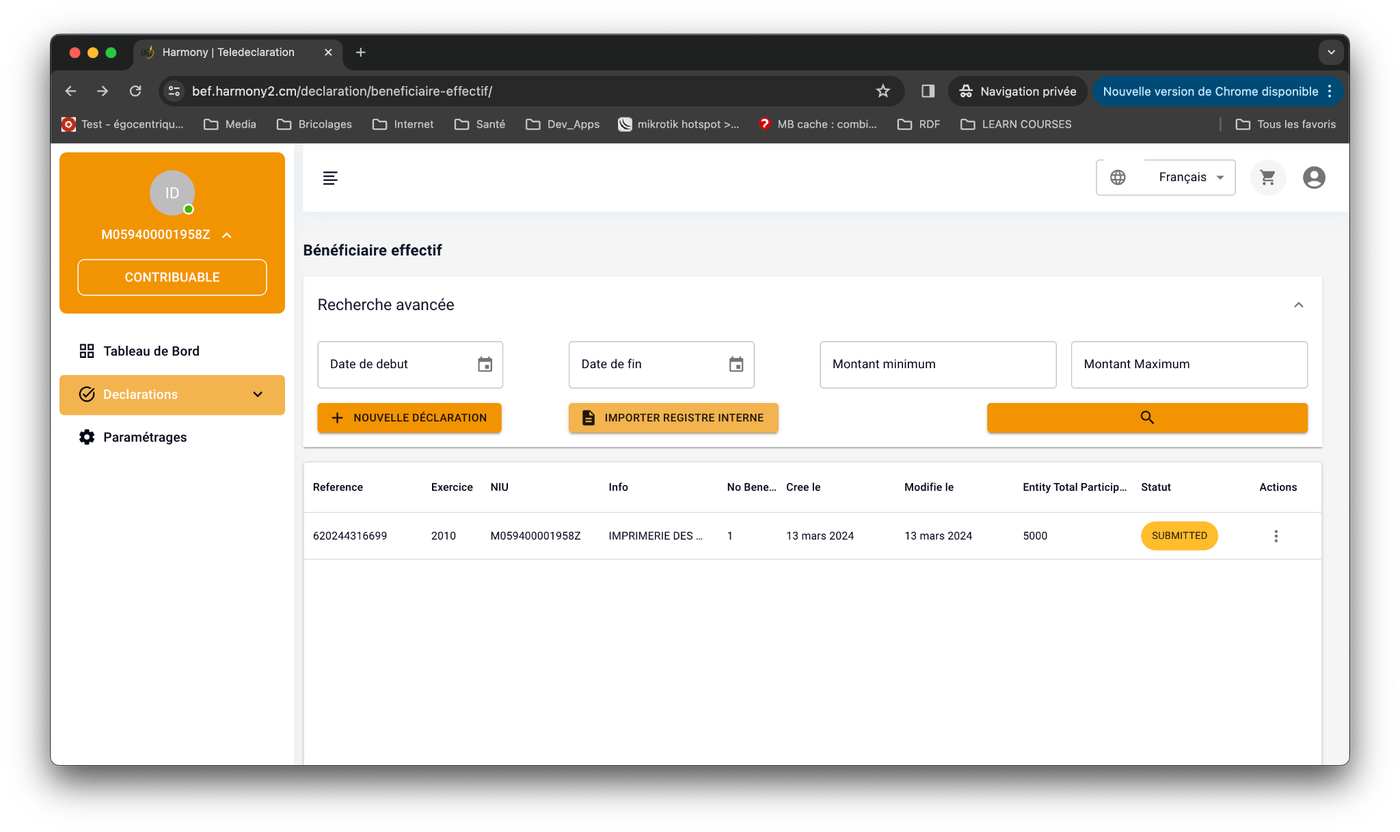
- Click the Declarations menu; the sub-menus appear ;
- Click the Beneficial owners sub-menu ;
- On the new page, click the NEW DECLARATION button.
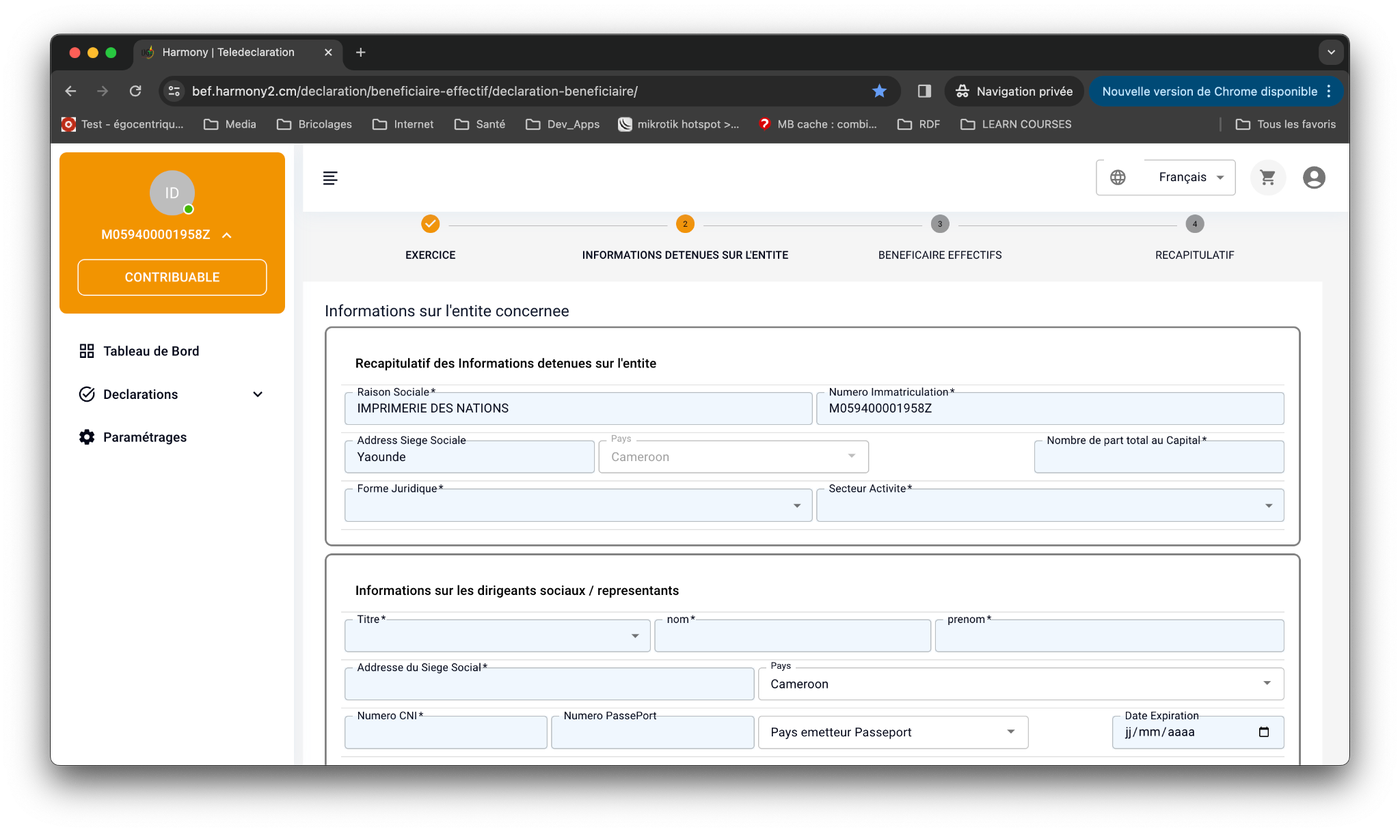
Step 1 — Entity information
First choose the fiscal year for which you wish to file, then click Next (bottom right).

Then provide the declaring company's details. The sub-form has two blocks:
- Block 1 — Declaring entity (mandatory): total number of shares (must differ from 0), legal form, business activity ;
- Block 2 — Manager (mandatory): title, first and last name, address, ID card number.
Click Next to move on to the following form.
Step 2 — Beneficiary information
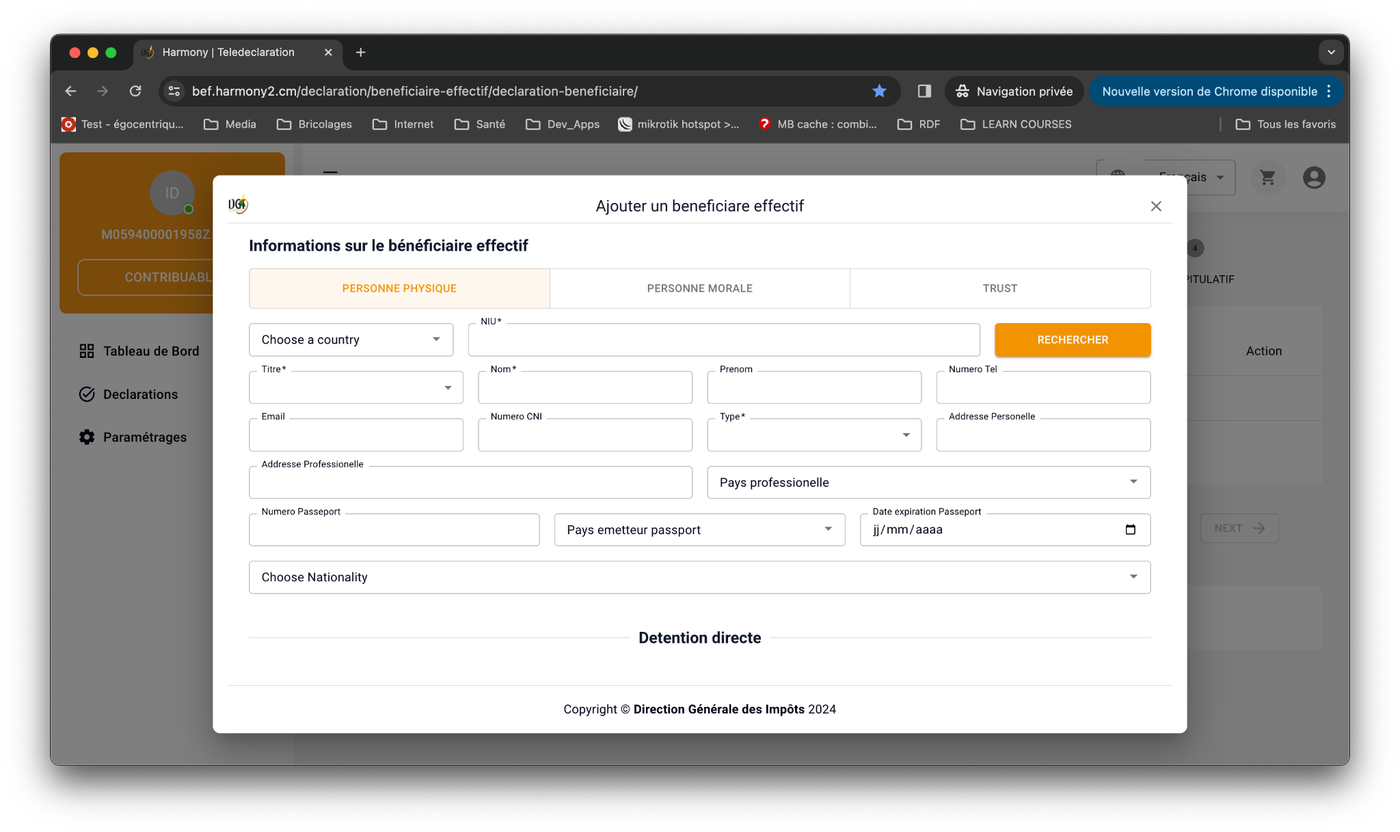
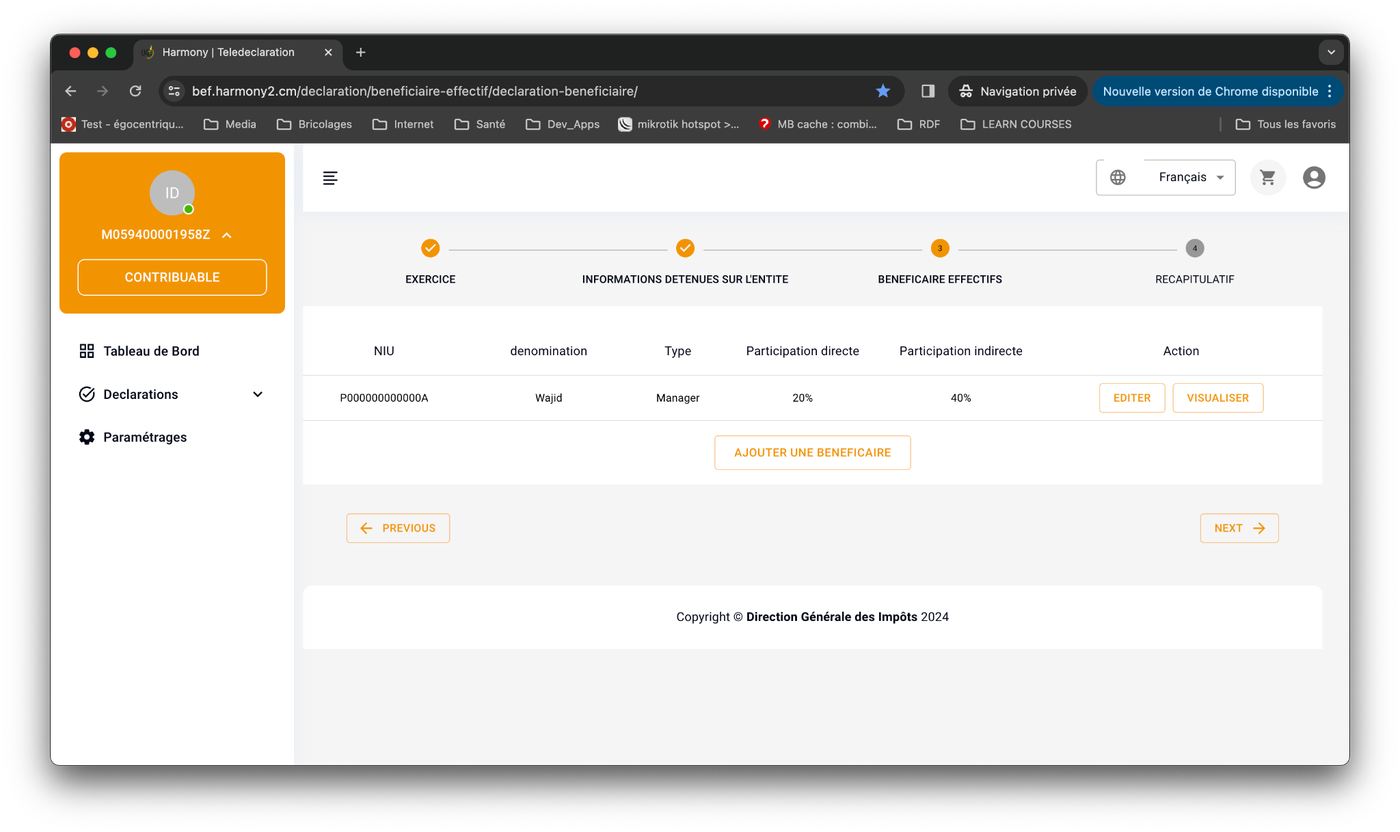
A page shows a table for adding the beneficial owner(s) of the declaring company.

For each beneficiary, click Add a Beneficiary and fill in the sub-form.
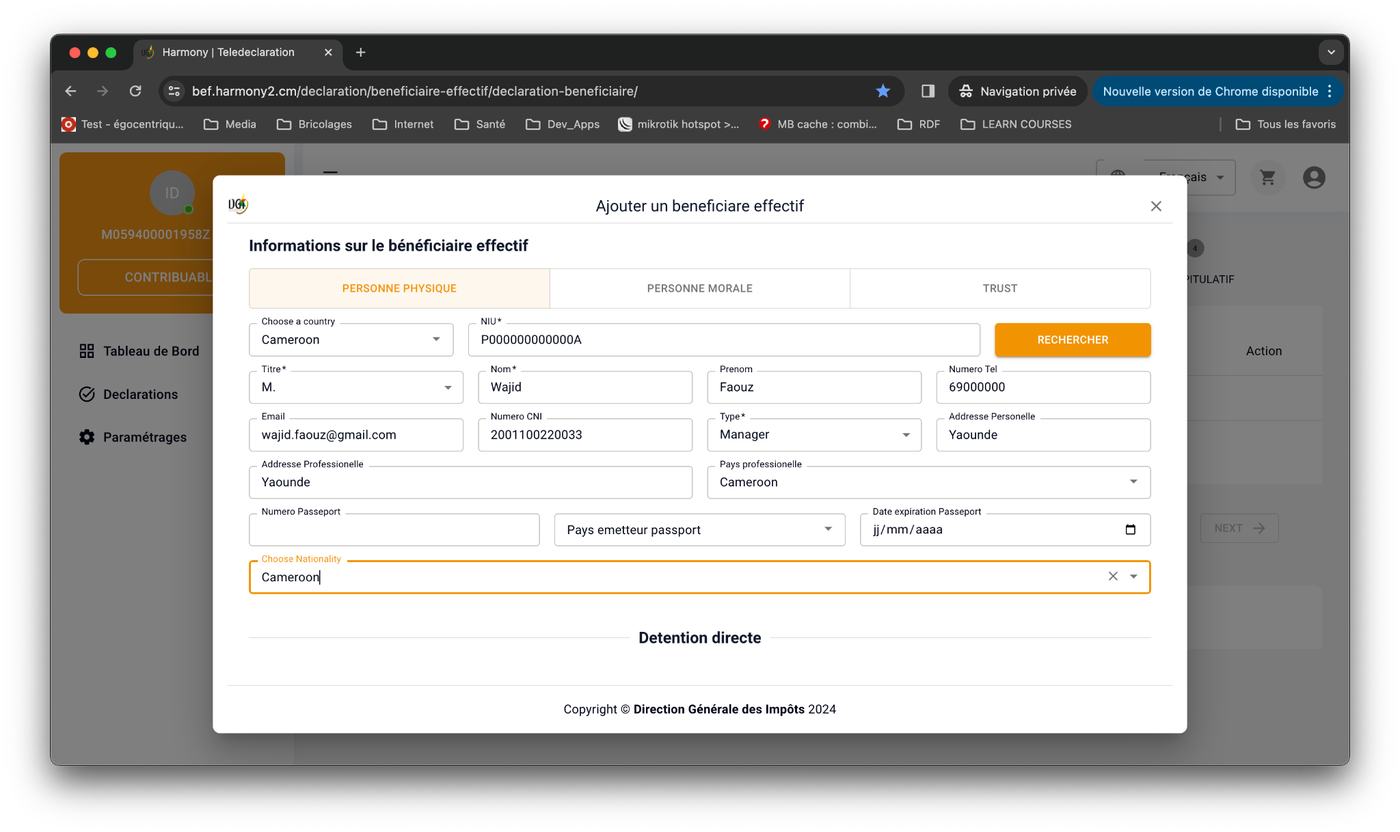
Direct holding
Direct holding is when the beneficial owner (a natural person) is directly linked to the company through capital participation. You then:
- Fill in the beneficiary's identification details (especially the mandatory fields) ;
- Enter the capital participations and voting rights: the beneficial-ownership percentage is computed automatically.

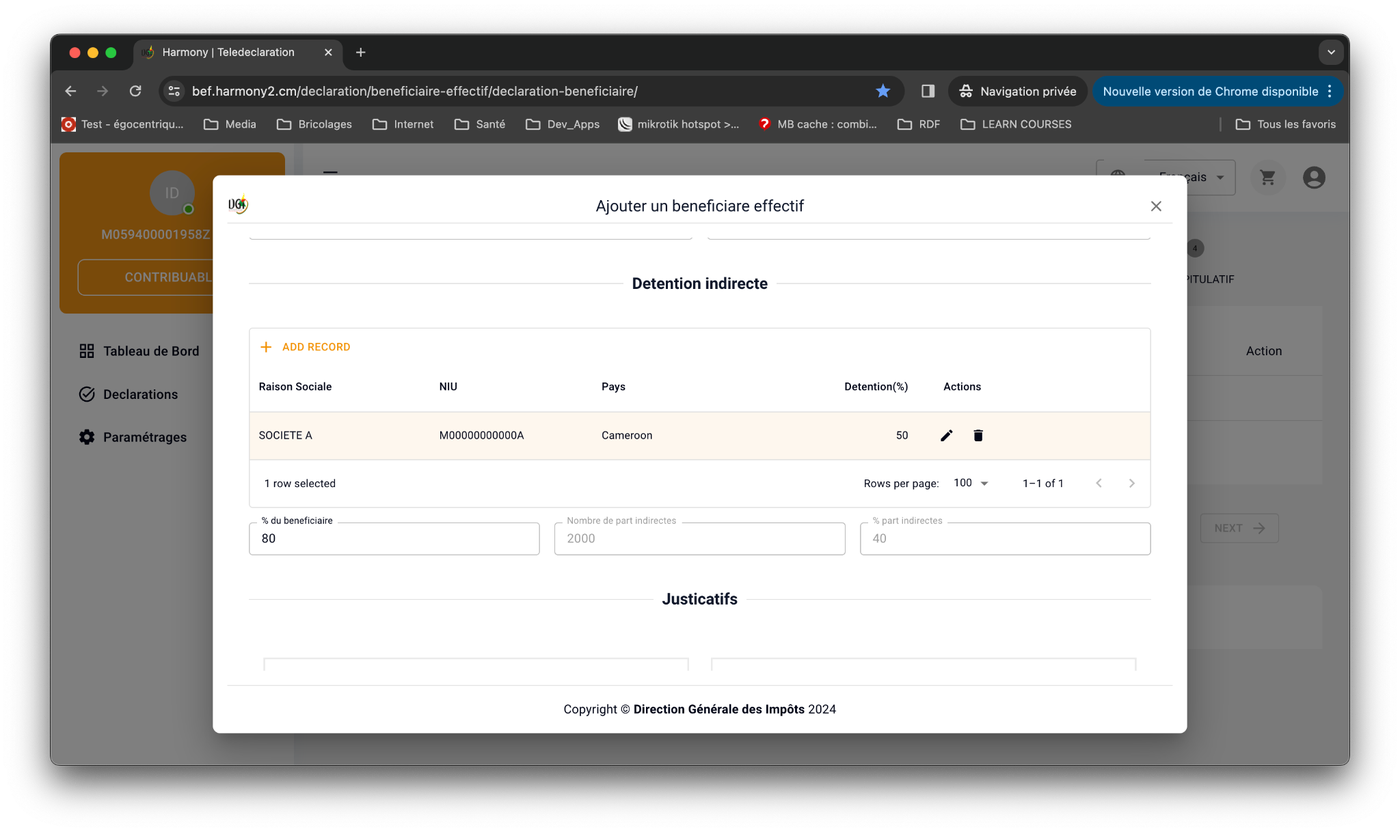
Indirect holding
Indirect holding occurs when the beneficiary holds power (capital participation or other) through one or several intermediary companies. You must list the intermediary companies and, for each, its holding percentage over the company directly above it.
Important note
If the beneficiary being entered has no intermediary, leave both the table and the percentage empty: there is none.

Example: Mr Wajid holds shares in the declaring company X through company A. To enter this:
- Click + Add Record: an entry row appears in the table ;
- Enter the company name, NIU and country of the intermediary company, plus its holding percentage over the declaring company (e.g. 50%) ;
- Below, enter the beneficiary's own holding percentage over the last company in the table (e.g. 80%) ;
- The application automatically computes the beneficiary's indirect holding over the declaring company.
- 1st row (1st intermediary): the percentage of that company over the declaring company ;
- Following rows: the percentage of the intermediary over the intermediary company directly above it.
Uploading supporting documents
After entering the beneficiary and their direct and/or indirect holding, upload the identity and residence supporting documents:
- 1st Choose a file button (left): the beneficiary's identity proof ;
- 2nd Choose a file button (right): the beneficiary's residence proof ;
- Each file name is displayed to confirm the selection.

Then click Validate (bottom right of the sub-form). You return to the beneficiaries table, where you can add more via the Add a beneficiary button.
Step 3 — Reviewing the summary
Once all beneficiaries are entered (direct holding, optionally indirect holding, and supporting documents), click Next to reach the summary and review all information before validation.
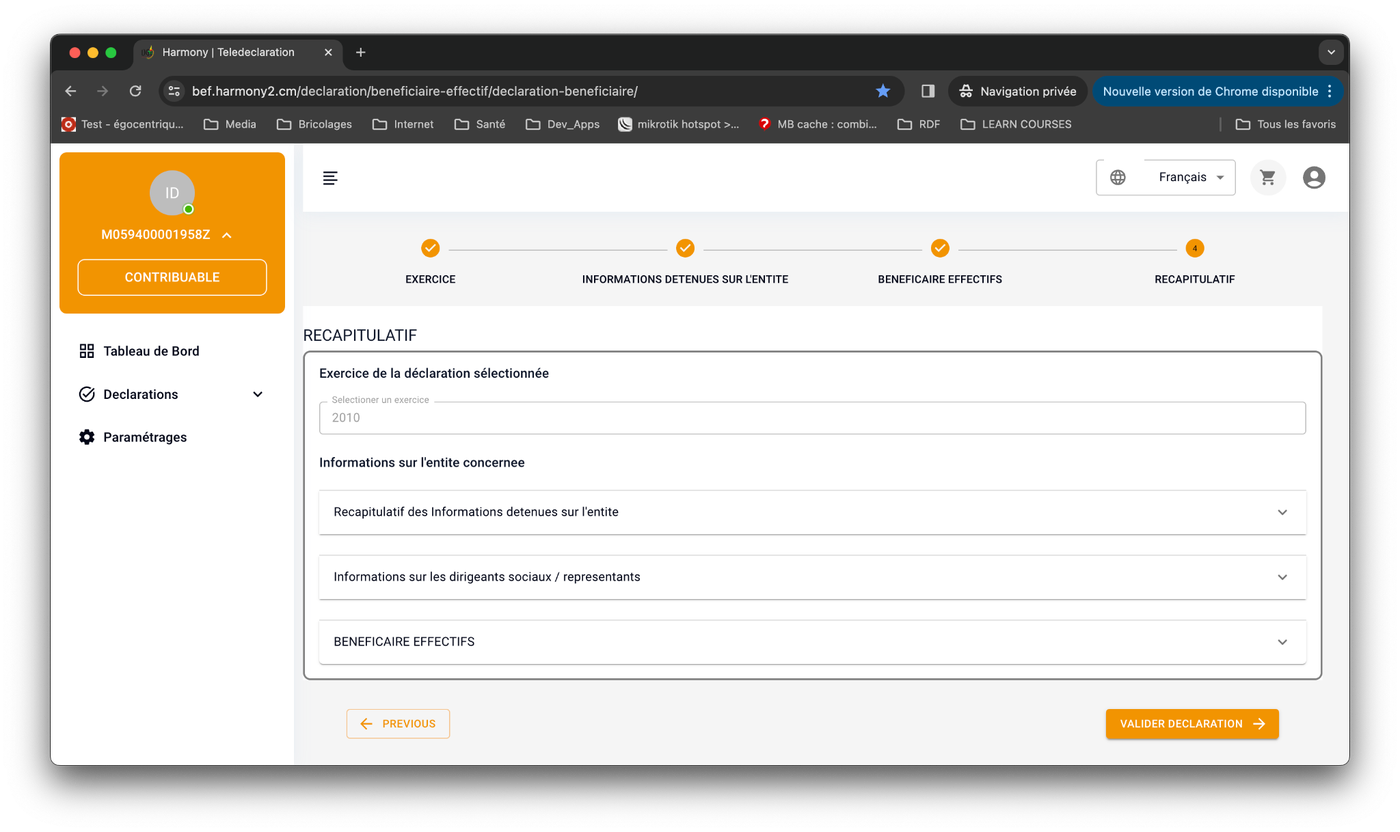
Expand each information group to check it. If everything is correct, click Validate Declaration. If an error occurs, a red message bubble appears at the bottom right; otherwise you are redirected to your declarations list.
3. Listing declarations
After validation you are automatically redirected to your declarations list. The new declaration appears with a reference and the DRAFT status: it must now be submitted.

4. Submitting your declaration
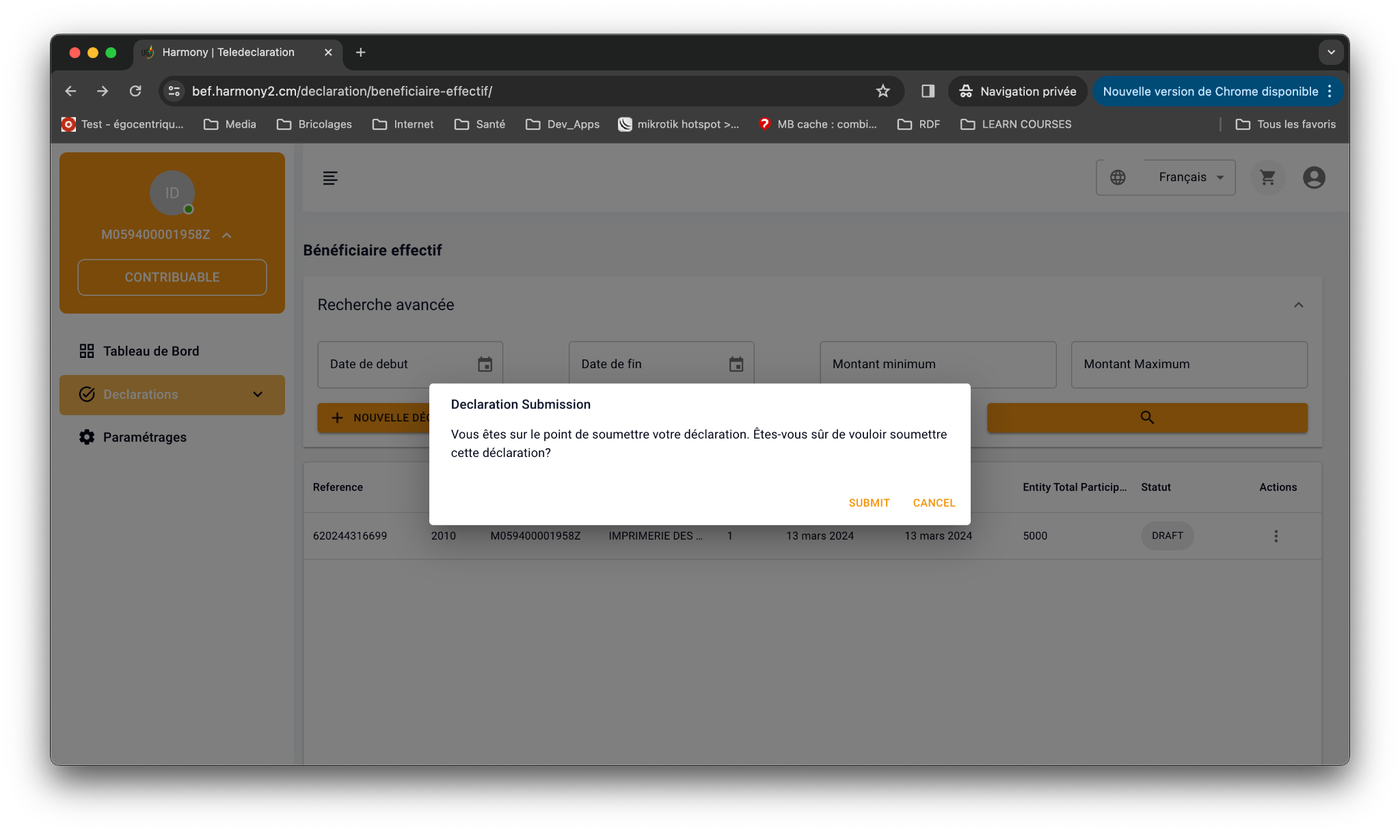
A declaration in DRAFT status can be submitted to the tax administration:
- Go to the declarations list (Declarations › Beneficial owners menu) ;
- On the declaration row, click the 3 dots on the right, then Submit ;
- Confirm the dialog box by clicking Submit ;
- The declaration then moves to the SUBMITTED status.

Download the official guide (PDF)
Taxpayer user guide — Central Register of Beneficial Owners, Directorate General of Taxation.
Continuer la lecture
réactions à cet article.
Ne manquez aucune actualité fiscale
Un email par semaine : nos derniers articles, un service utile à découvrir, et une offre quand il y en a une. Zéro spam.
En vous inscrivant, vous acceptez de recevoir nos emails. Désabonnement en un clic à tout moment.
Commentaires (0)
Soyez le premier à commenter cet article !
Laisser un commentaire
Rechercher
Articles Récents
tas.dgi.cm (TAS Gov Web) : ce que c'est vraiment, et où déclarer son IGS
Mercuriale des prix des terrains au Cameroun 2026 : le décret 2014/3211/PM, les coefficients par usage et ce que vous paierez vraiment

Gagner de l'argent avec Drivo : chauffeur, propriétaire ou partenaire de flotte, qui gagne quoi vraiment
Tags Populaires
Besoin d'un conseil ?
Nos experts vous accompagnent dans toutes vos démarches : fiscalité, juridique, comptabilité, création d'entreprise et plus.
Prendre RDV